If you or someone you care for experiences hand tremors, parkinsonism, or fine motor challenges, interacting with an iPhone touchscreen can feel frustrating. Unintentional double-taps, accidental swipes, or shaky touches often trigger unwanted actions.
iOS includes built-in Touch Accommodations and accessibility controls designed to stabilize your interactions and make your iPhone far easier to use. Here is a step-by-step guide to configuring your screen for hand tremors.
Here is the official Apple guide: Adjust how iPhone responds to your touch
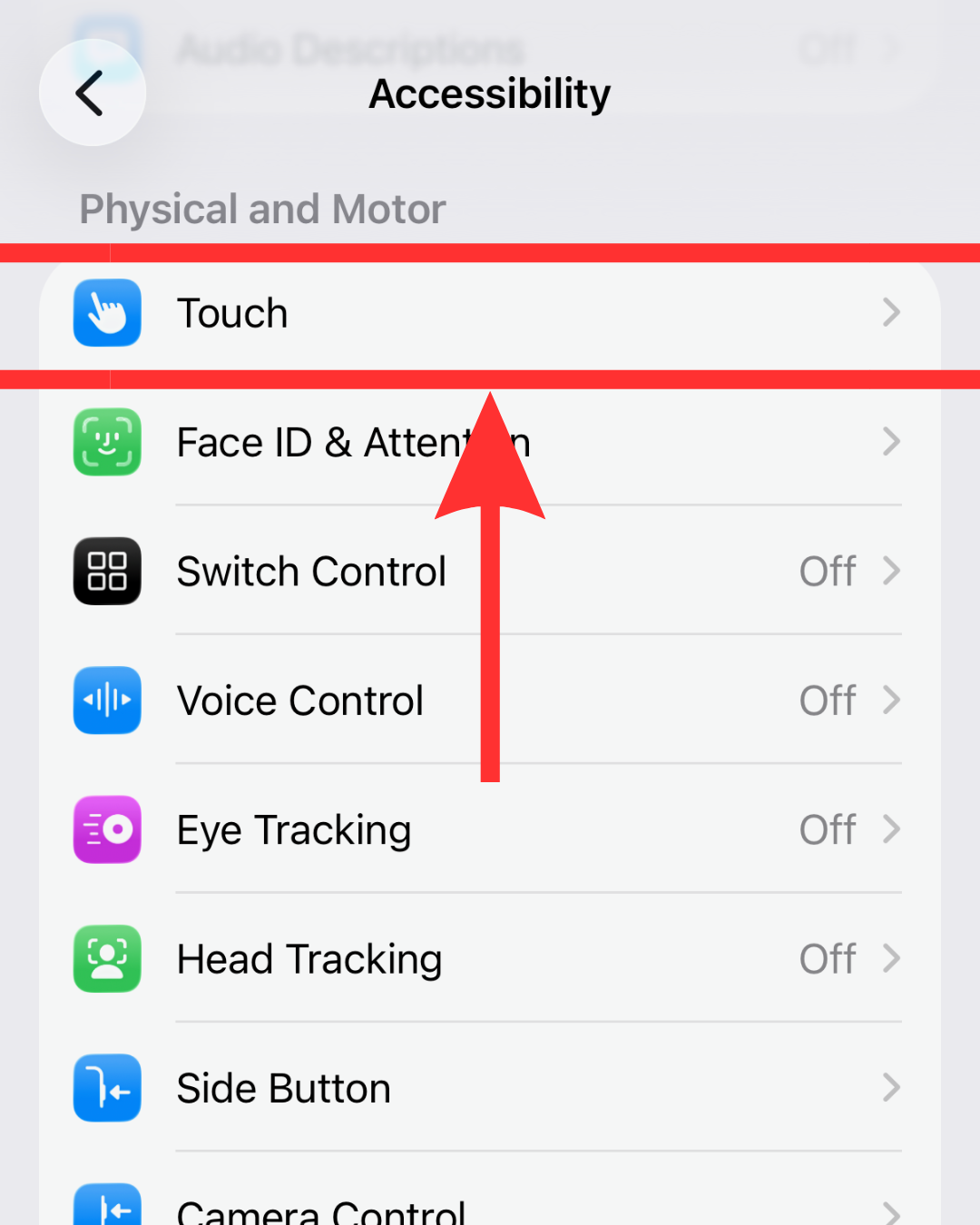
Go to Settings>Accessibility>Touch. All touch sensitivity and physical gesture controls are managed from this single screen.
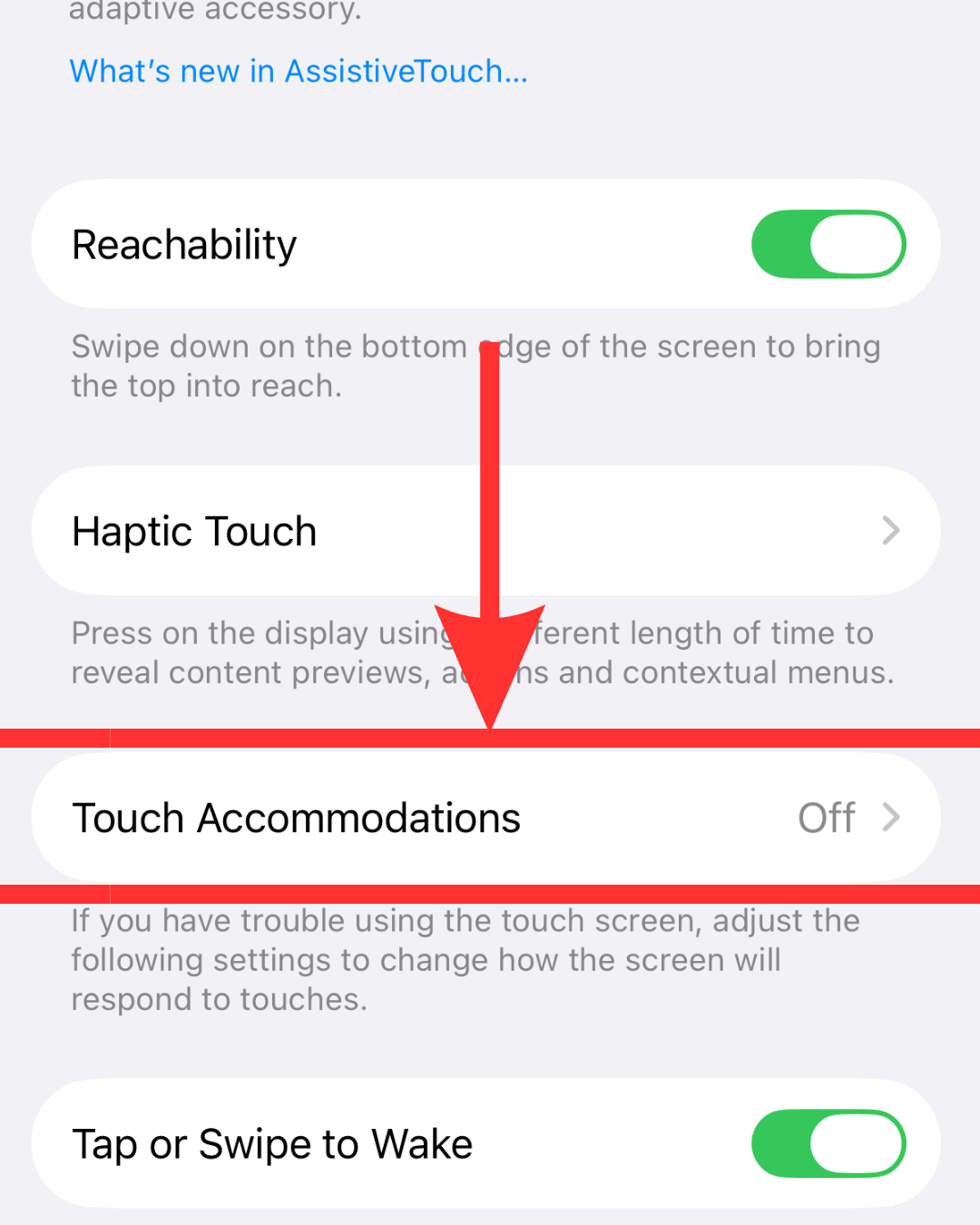
Tap Touch Accommodations at the top of the menu.
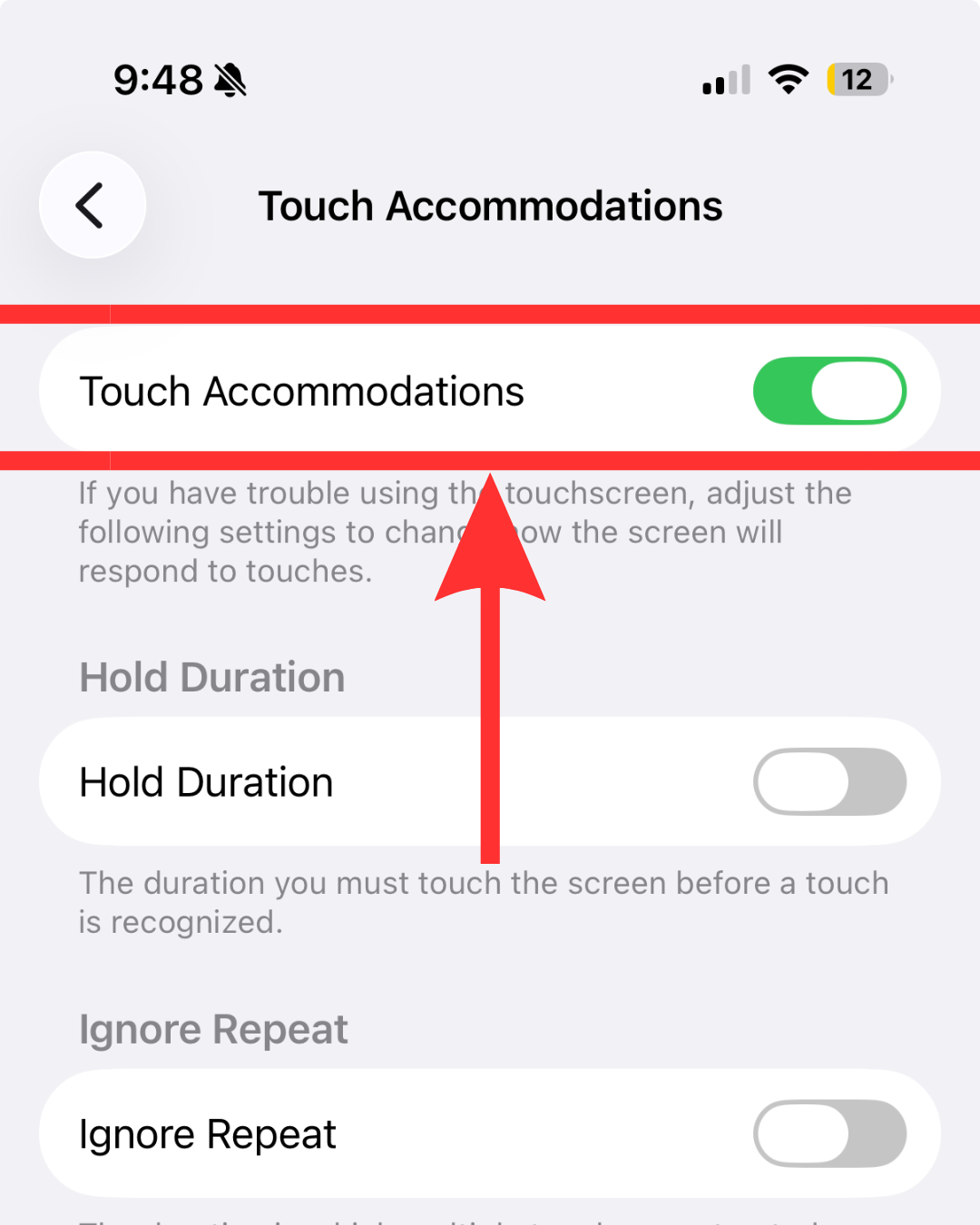
Toggle the main Touch Accommodations switch to On. This allows you to modify the touch settings.
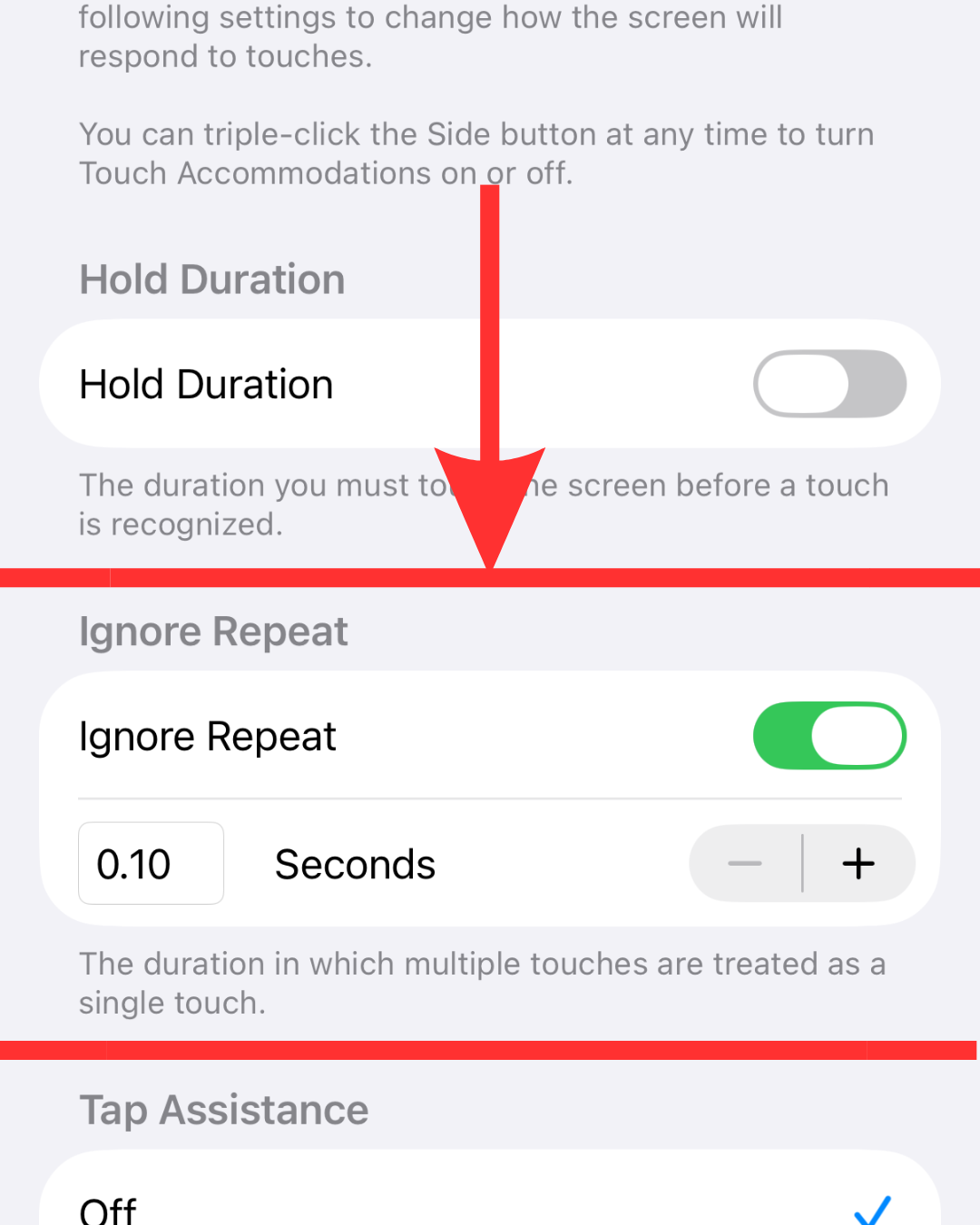
On the same screen, turn on Ignore Repeat. If a tremor causes your finger to bounce rapidly against the display, this setting tells your iPhone to ignore any extra touches that happen right after the first one.
Tap the + or – buttons under Ignore Repeat to set your timing window (e.g., 0.3 to 0.5 seconds). Any additional taps occurring within this timeframe will automatically be counted as just a single touch.
Recommendation: Start with low numbers and see if it is still too sensitive. Then, increase the number until it is the right sensitivity for you.
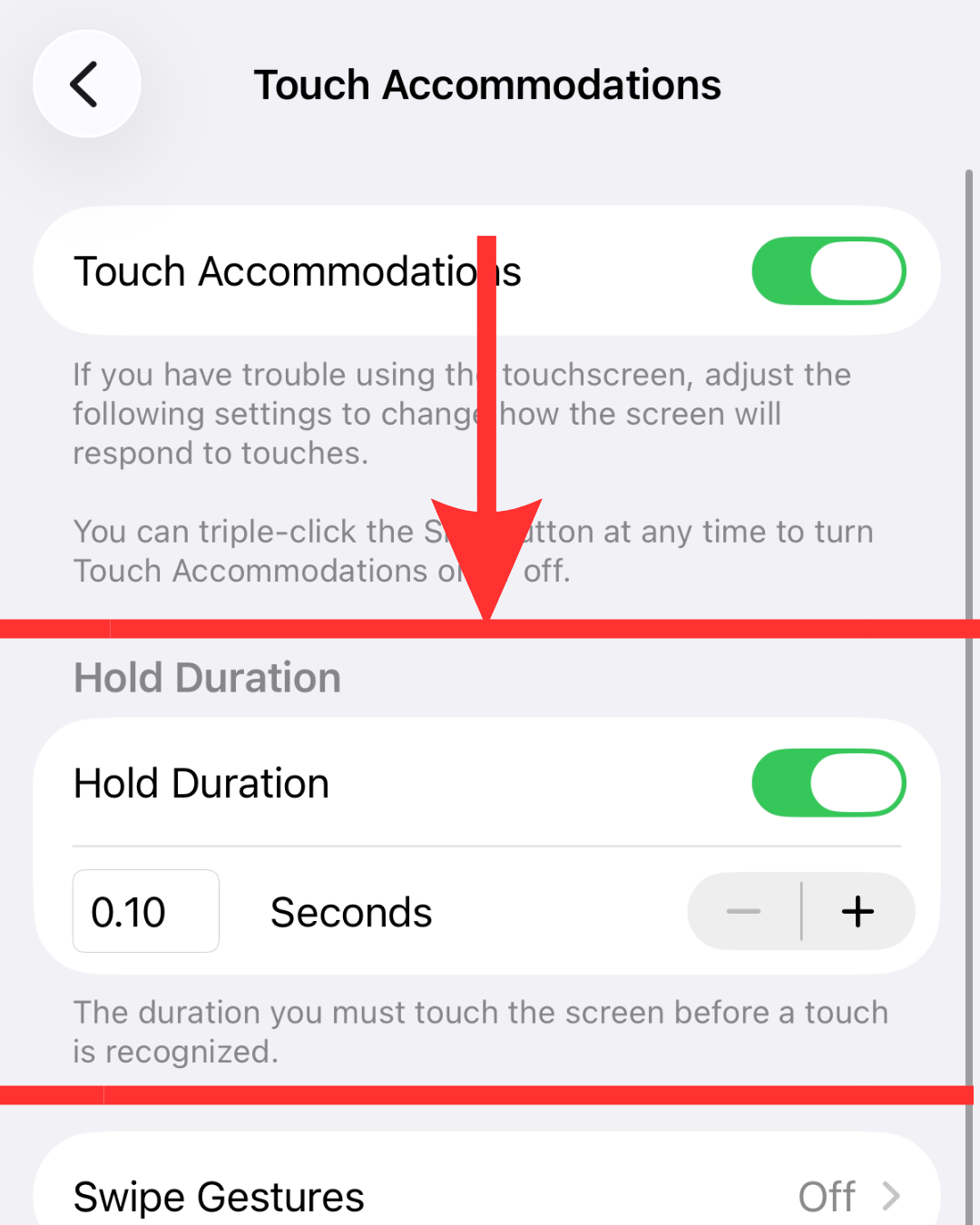
Turn on Hold Duration and adjust the timer. This forces the screen to ignore light, stray contact as your hand moves across the display. A touch only registers if your finger stays still on an item for your chosen duration.
Recommendation: A setting around 0.20–0.35 seconds is usually enough to filter out fast, accidental brushes without making deliberate taps feel sluggish.
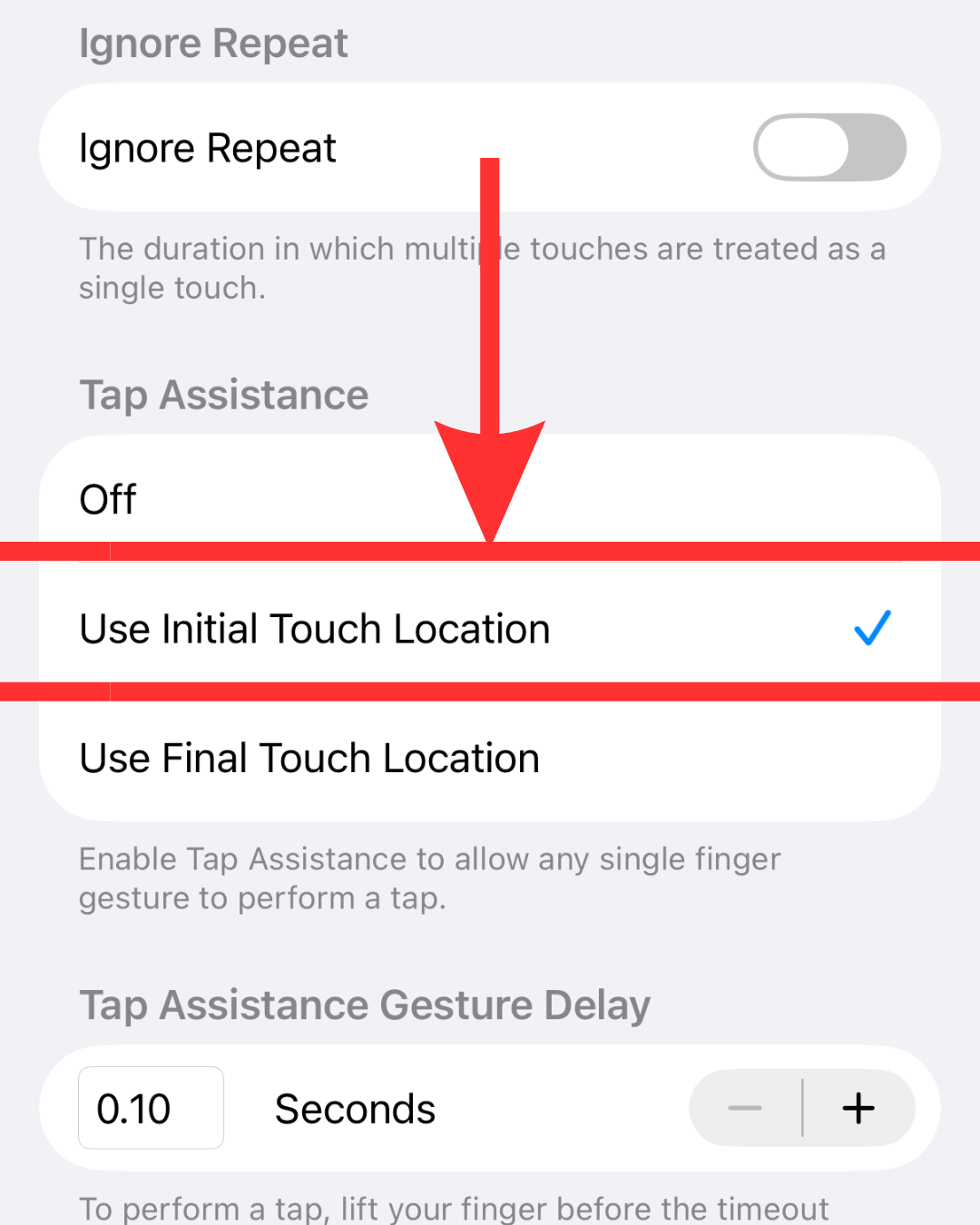
Scroll down to Tap Assistance and choose Use Initial Touch Location. If your finger lands on the intended app icon but drags slightly off target due to a tremor before lifting up, the iPhone still registers the action right where your finger first landed.
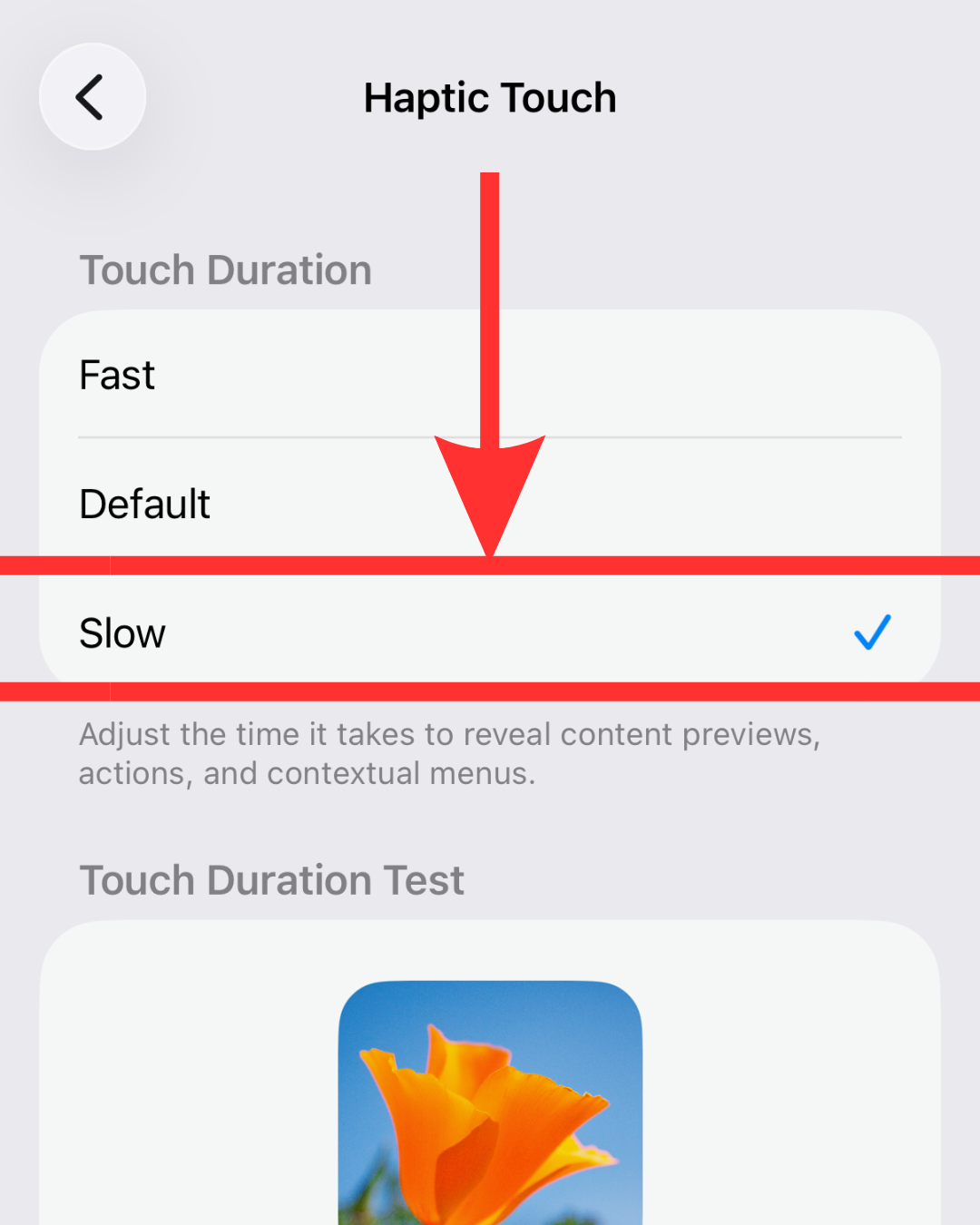
Go back to the main Touch menu, select Haptic Touch, and set the speed to Slow. This increases the press duration required to open preview cards or app shortcut menus, keeping momentary screen holds from accidentally launching unwanted pop-ups.
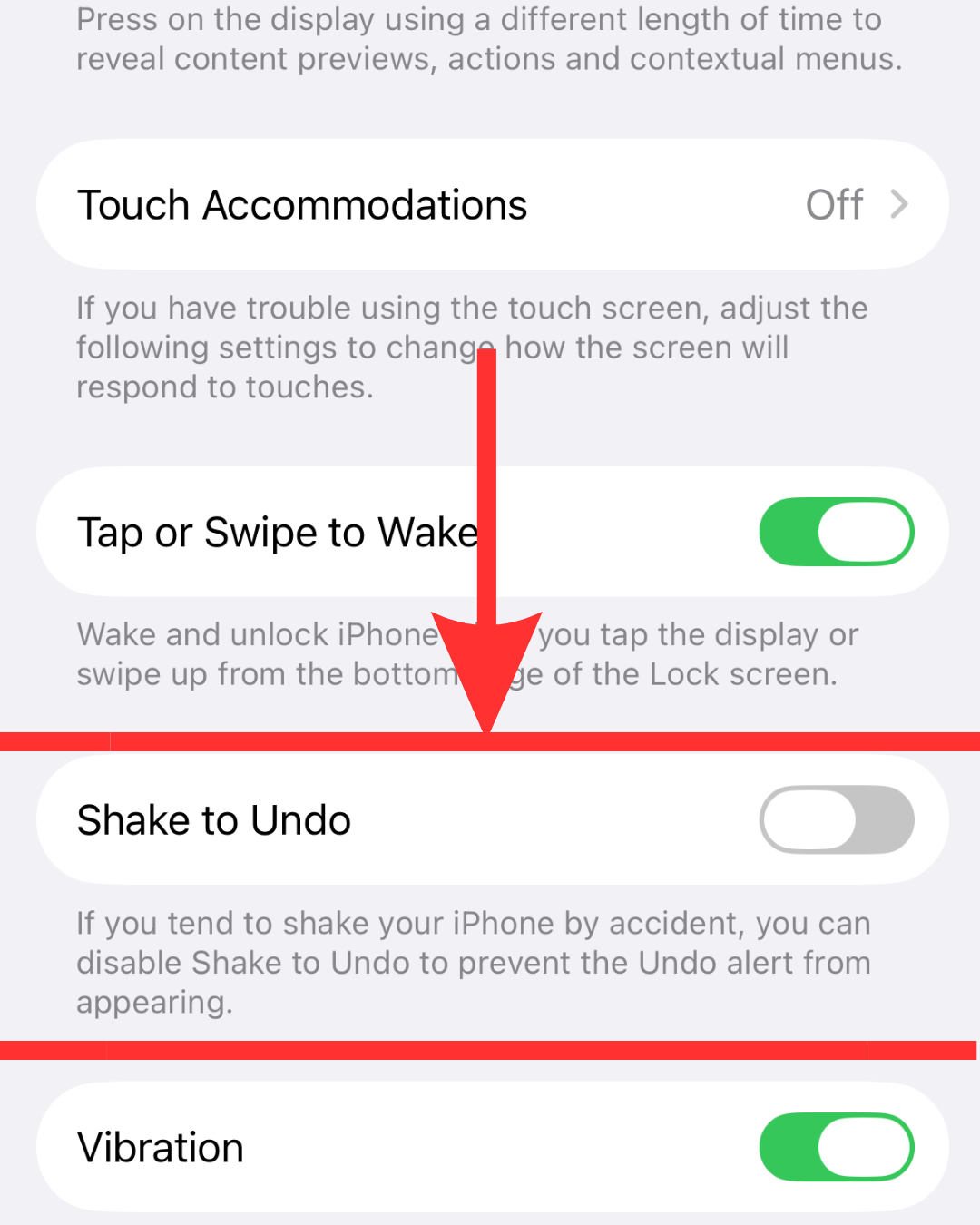
From the main Touch menu, turn off Shake to Undo. Disabling Shake to Undo eliminates the annoying "Undo Typing" pop-up that appears when hand tremors inadvertently shake the phone.
iPhones can create a lot of frustration when you have a hand tremor. These iPhone touch settings for hand tremors are worth experimenting with.
A magnetic iPhone stand is also one of our recommendations. This allows you to no longer have to hold your iPhone in your hand. This is especially useful for activities like calls and video appointments with healthcare providers.
For additional everyday ideas beyond your phone, check out these helpful guides relevant to hand tremors: