Small text on iPhones can be challenging for older adults or people with low vision to see. Luckily, it can be adjusted in settings in about a minute! Follow this quick guide to make iphone text easier to see and instantly improve your screen's readability.
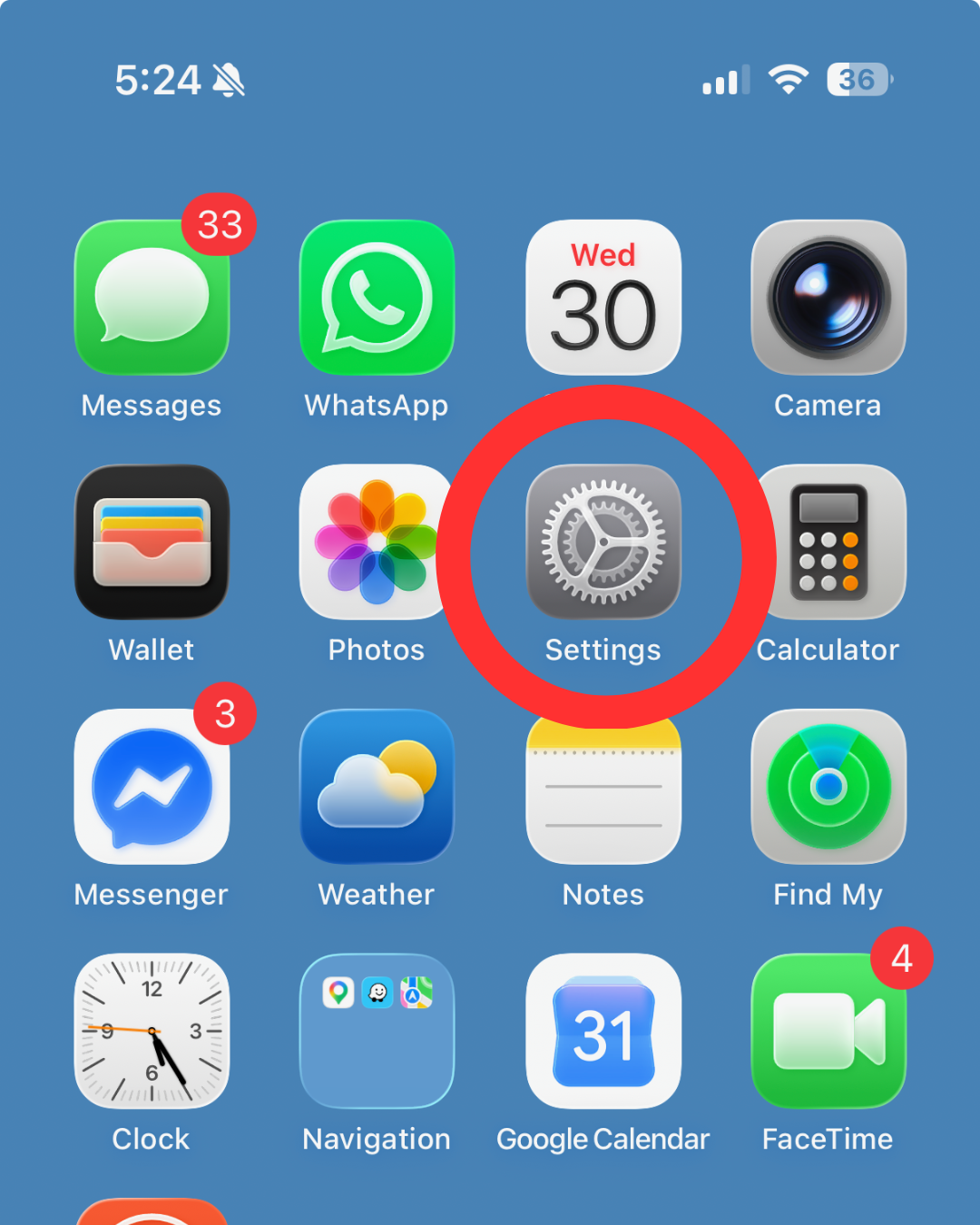
Tap the Settings app icon on your iPhone home screen.
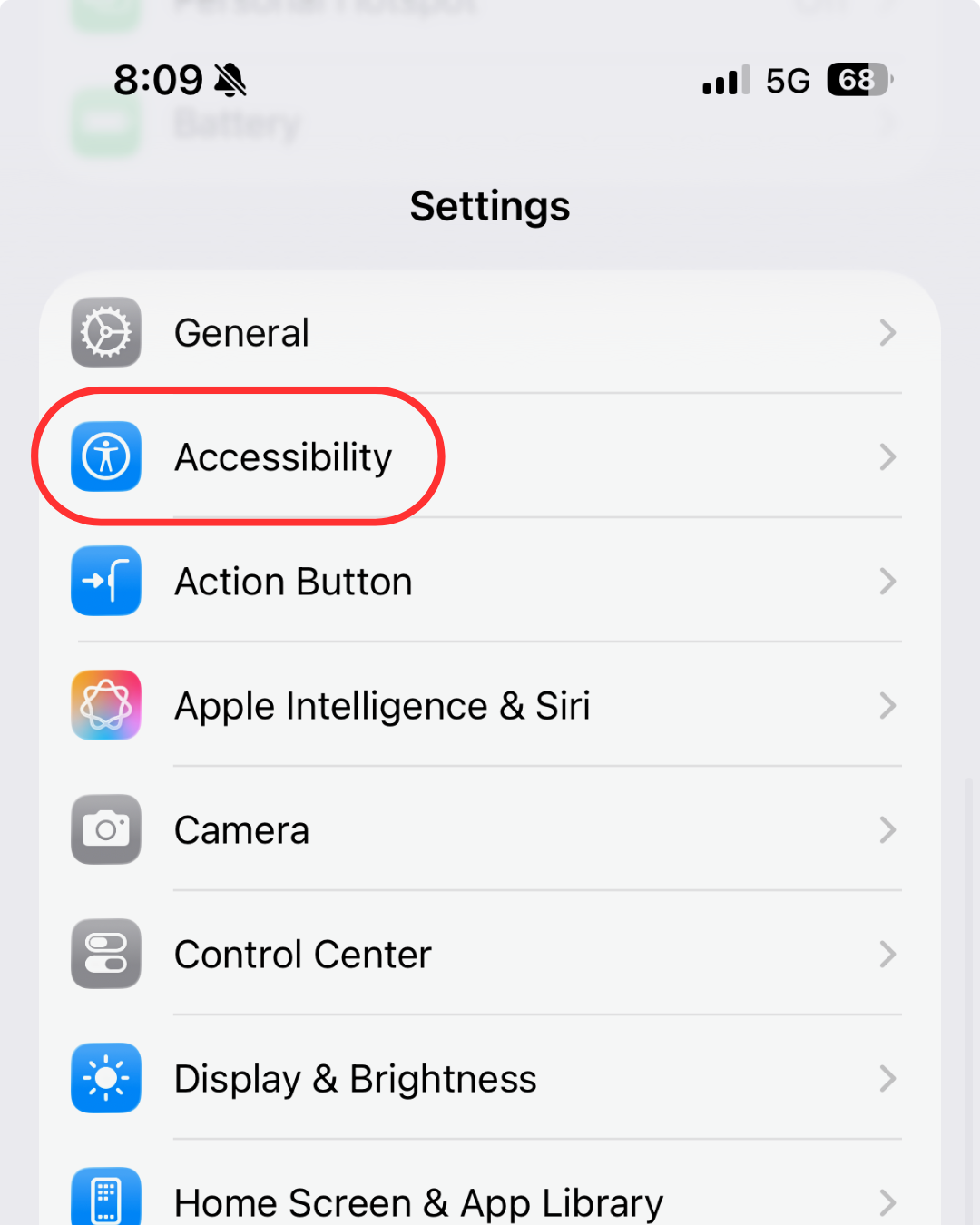
Scroll down and select Accessibility from the main Settings menu.
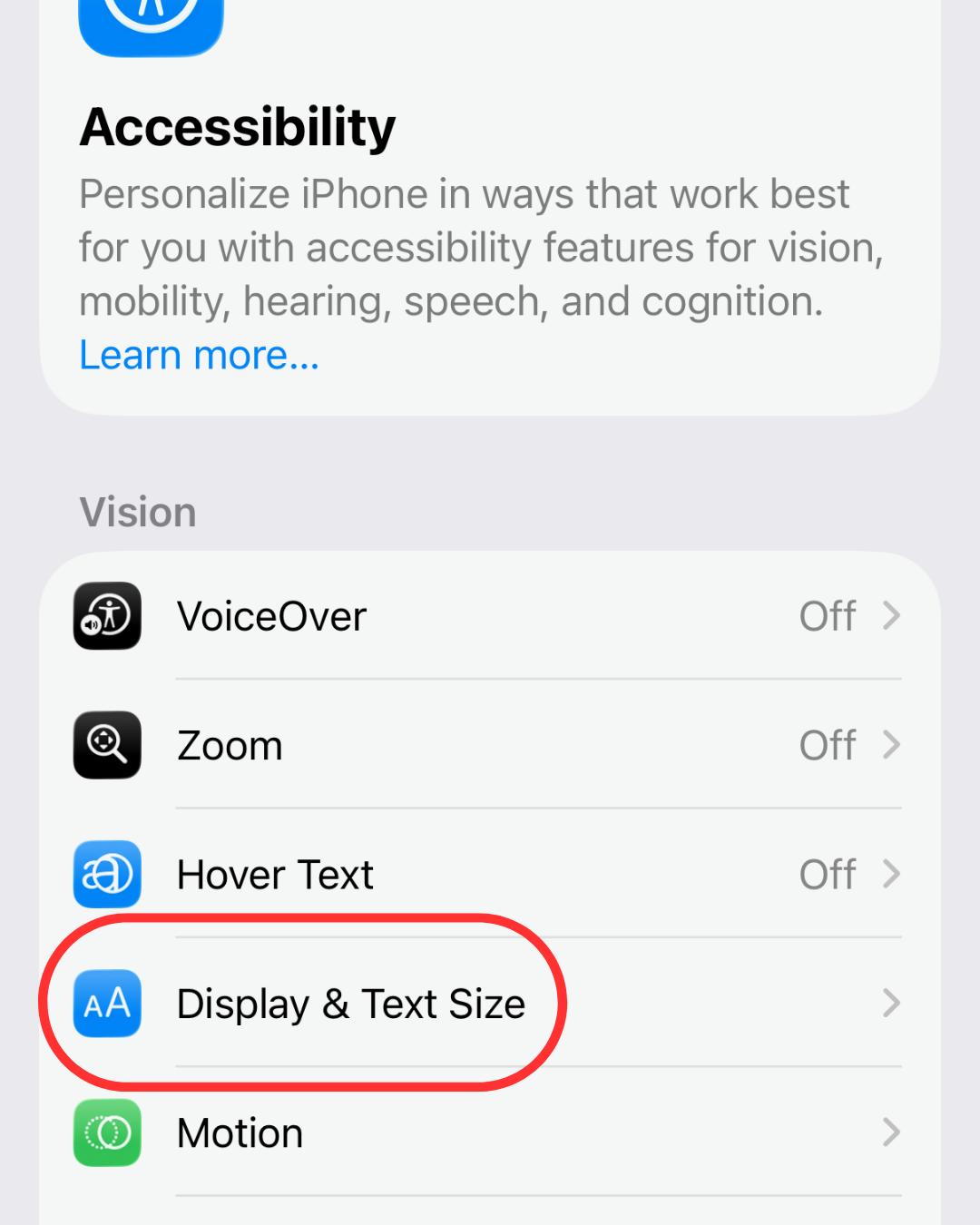
Under the Vision section, tap on Display & Text Size.
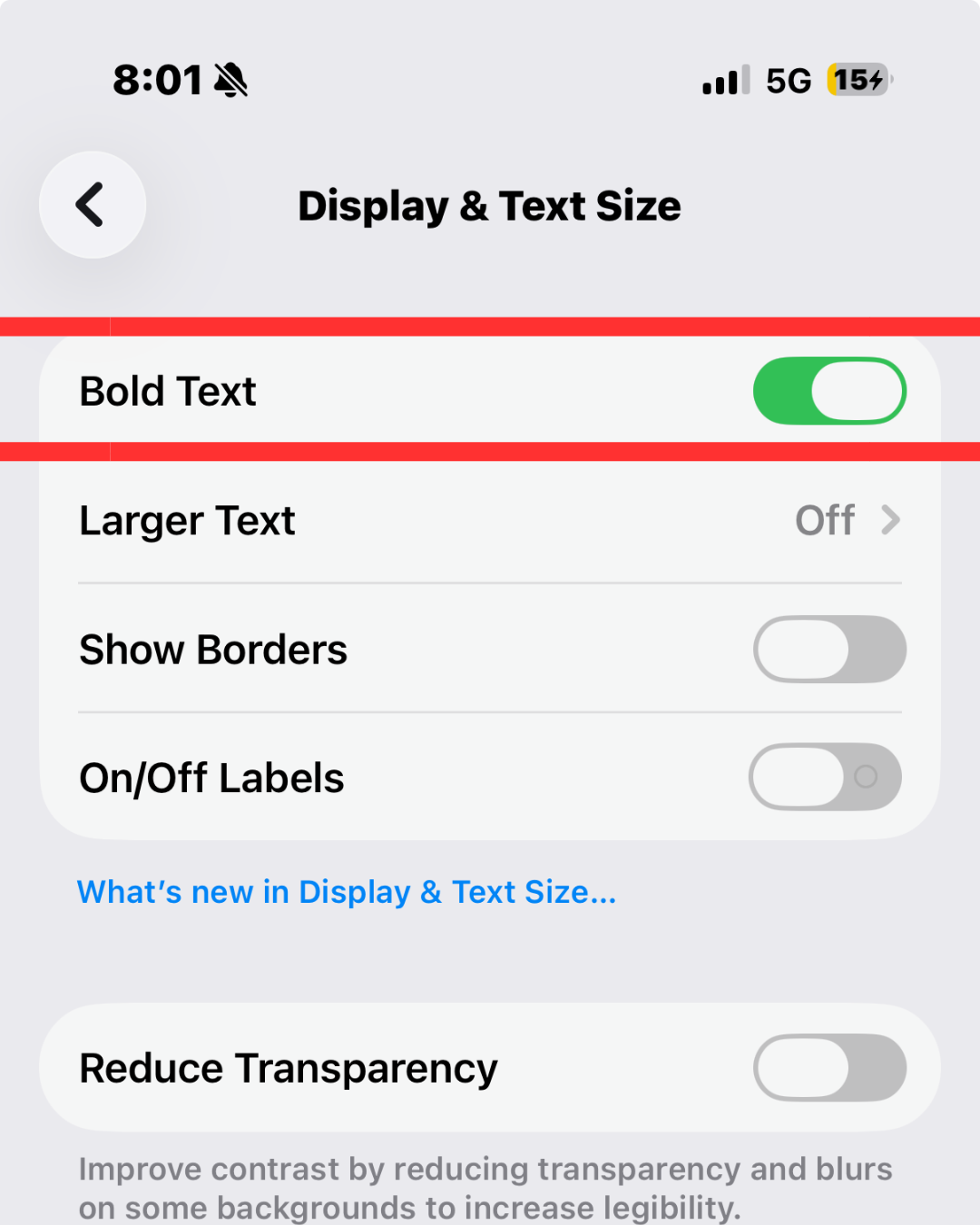
Toggle on Bold Text to instantly darken and emphasize the system font.
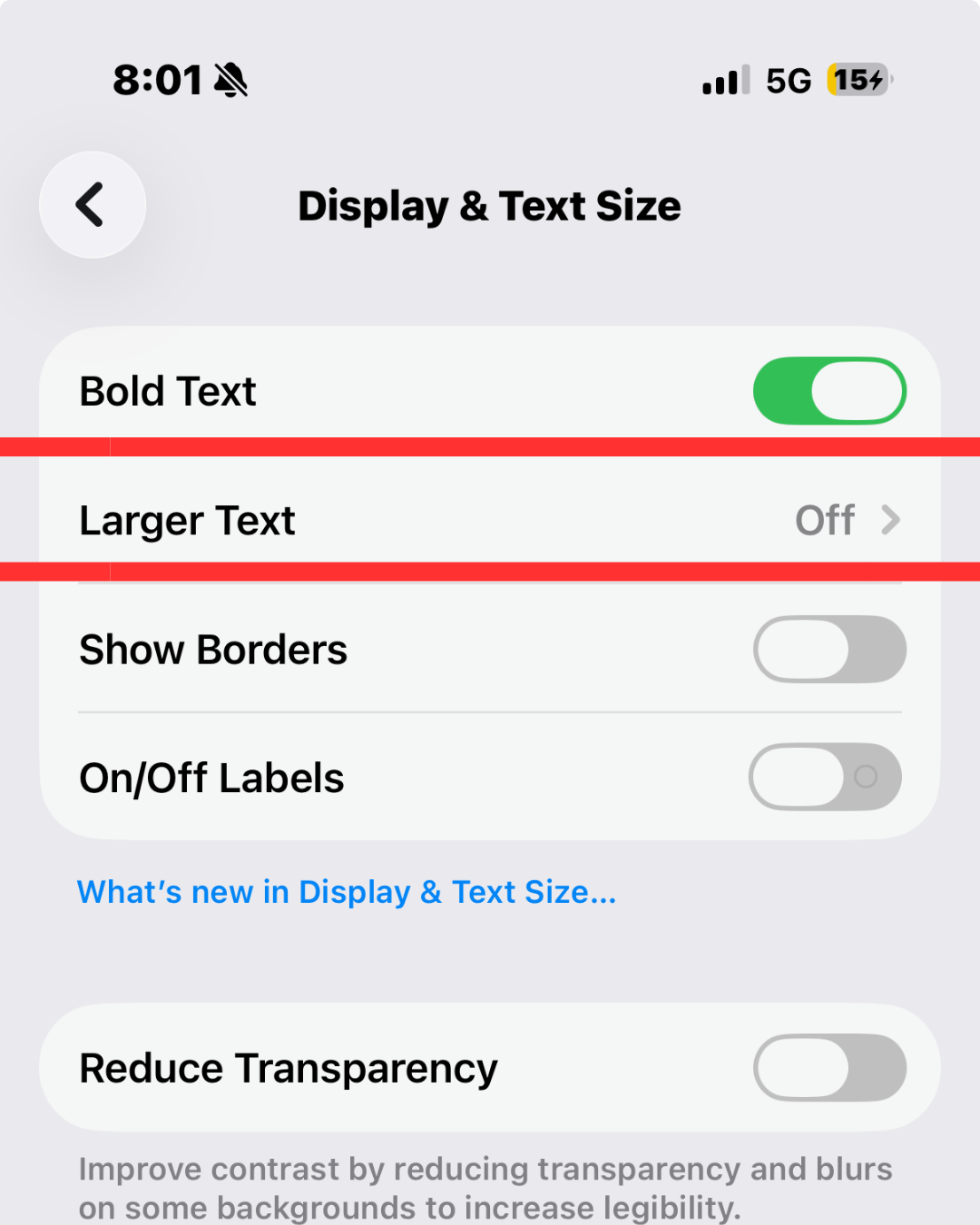
Tap on Larger Text to open font adjustment controls.
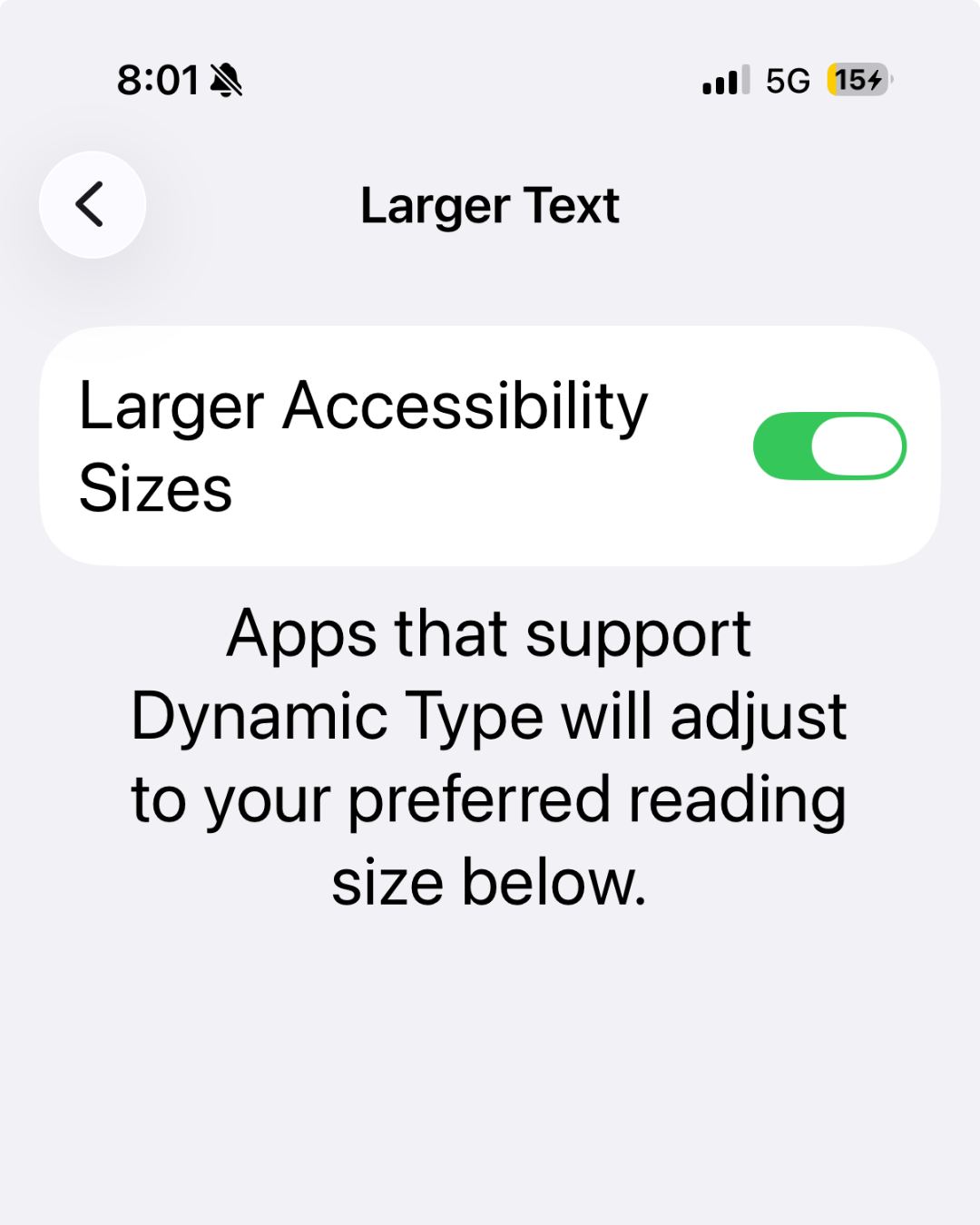
Enable Larger Accessibility Sizes.
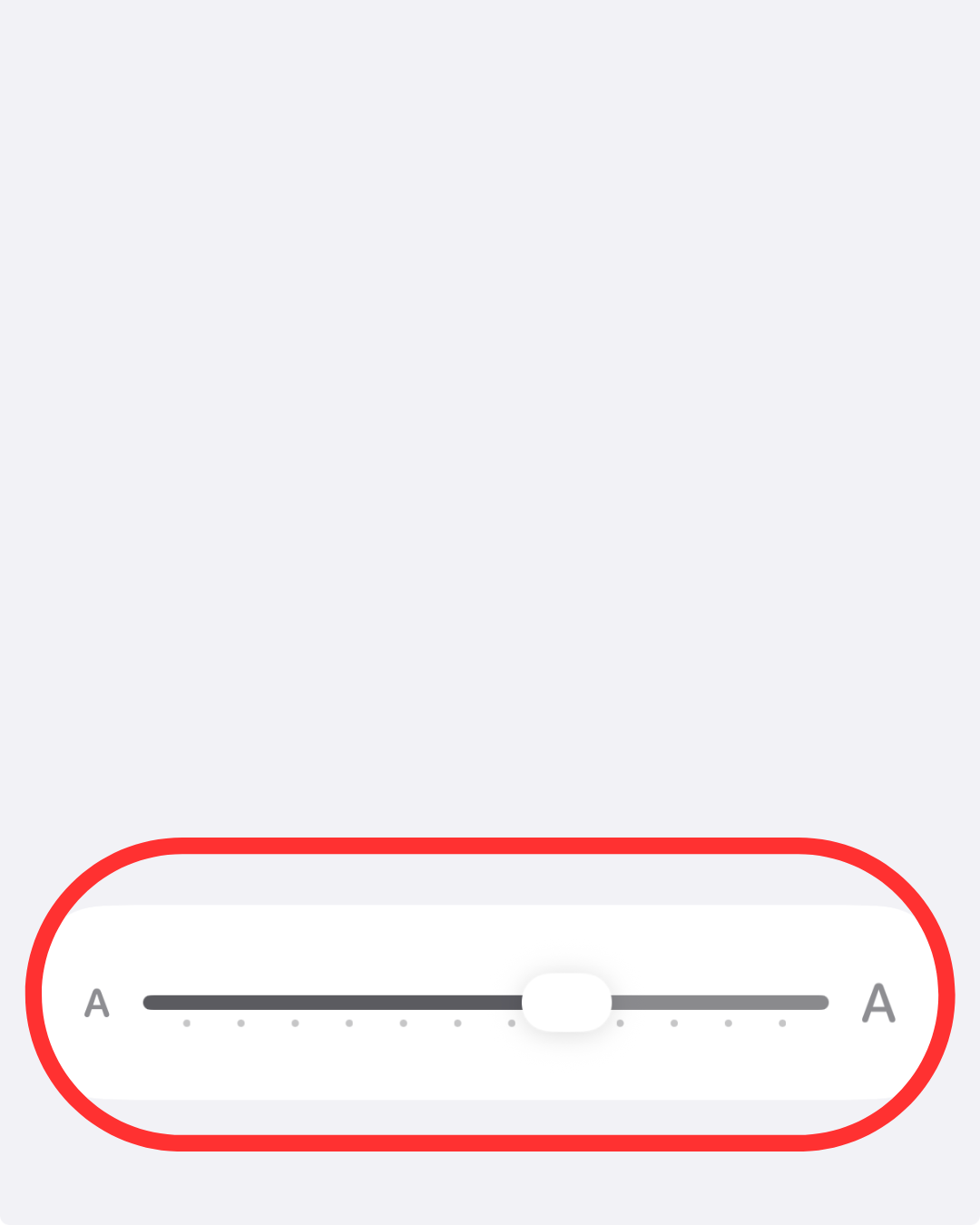
Adjust the size by sliding the slider. Drag it to the right to see larger text.
Applying these quick accessibility settings allows you to successfully make iPhone text easier to see. A one-minute fix to make your every day life easier!
Find a detailed guide on Apple's website here: Change the font size on your iPhone, iPad, and iPod touch.