For older adults, voice assistants like Siri can be life-changing. The voice assistant can make it effortless to call family, text, set medication reminders, or ask for the weather without typing on a small screen. However, Apple’s default settings often make Siri cut off mid-sentence or speak too quickly for comfortable listening.
By making a few simple adjustments in Accessibility, you can tailor Siri to be far more patient, easy to hear, and accommodating to speech differences. Here is a clear, step-by-step guide to setting up Siri for aging adults.
For the full guide, you can visit Apple's comprehensive guide: Change Siri accessibility settings on iPhone.
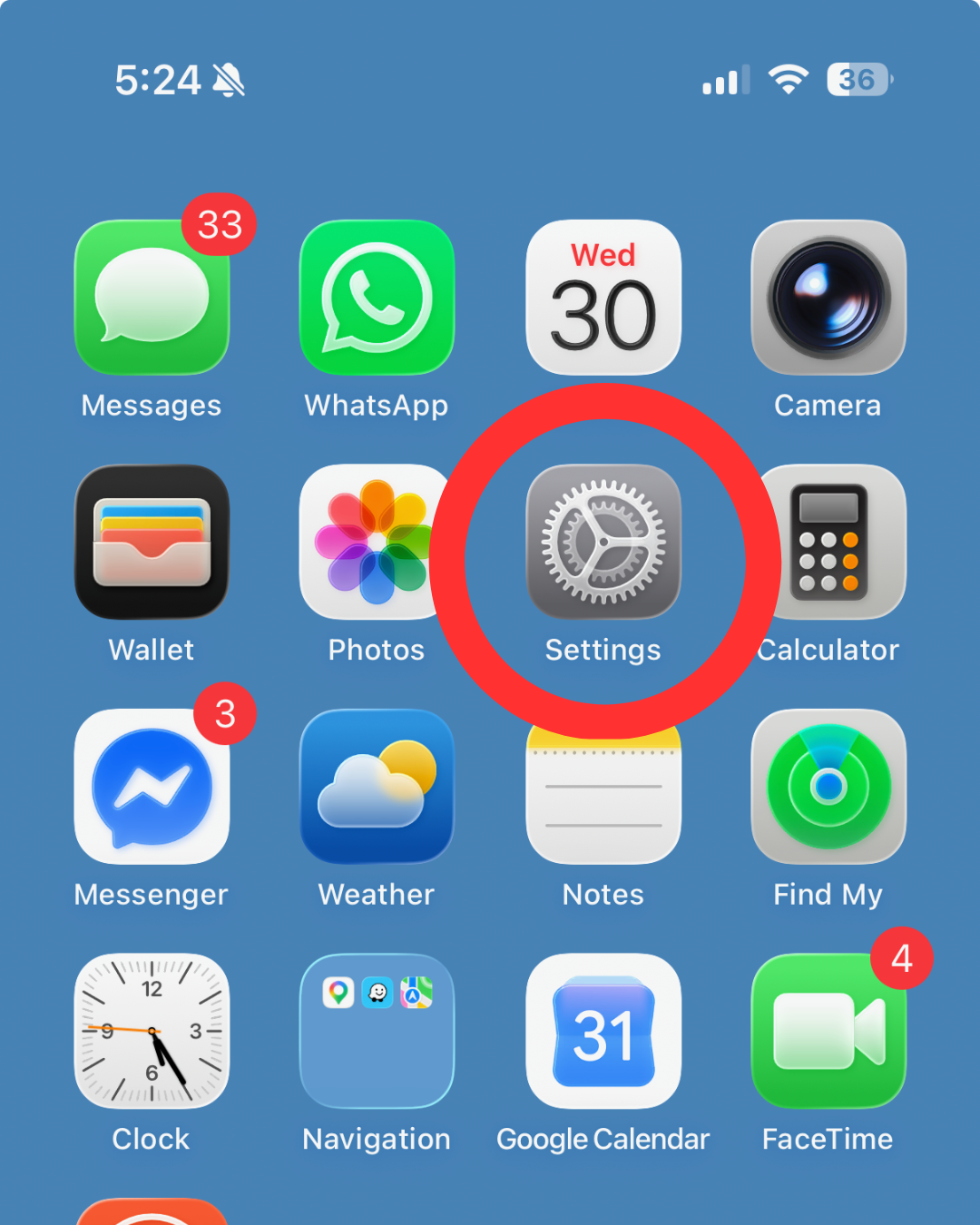
From the home screen, tap the Settings gear icon.
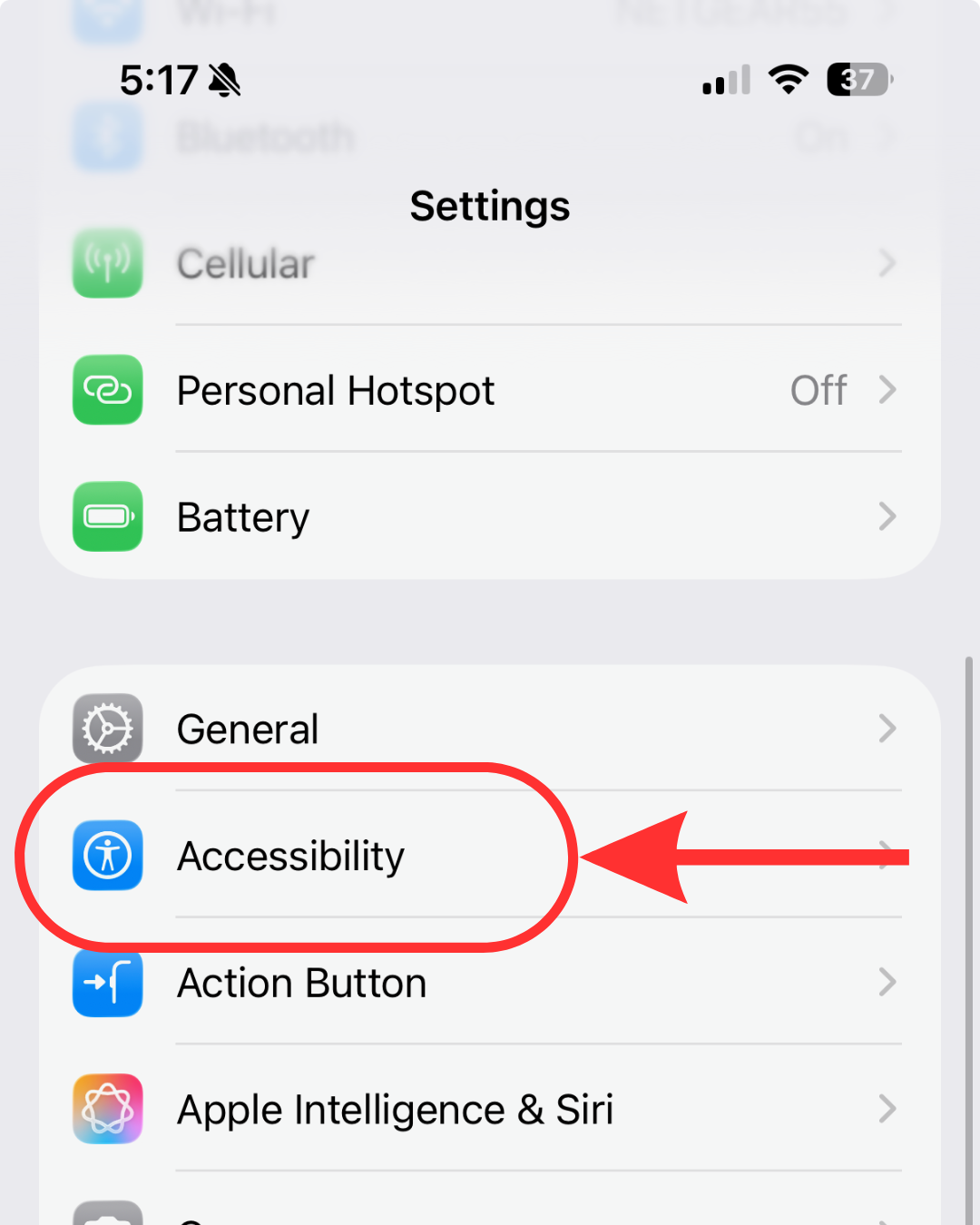
Scroll down through the main Settings menu and tap Accessibility (indicated by the blue icon with a person inside a circle).
Note: Adjusting Siri through Accessibility gives you far more control over voice speed and pause times than the standard Siri menu.
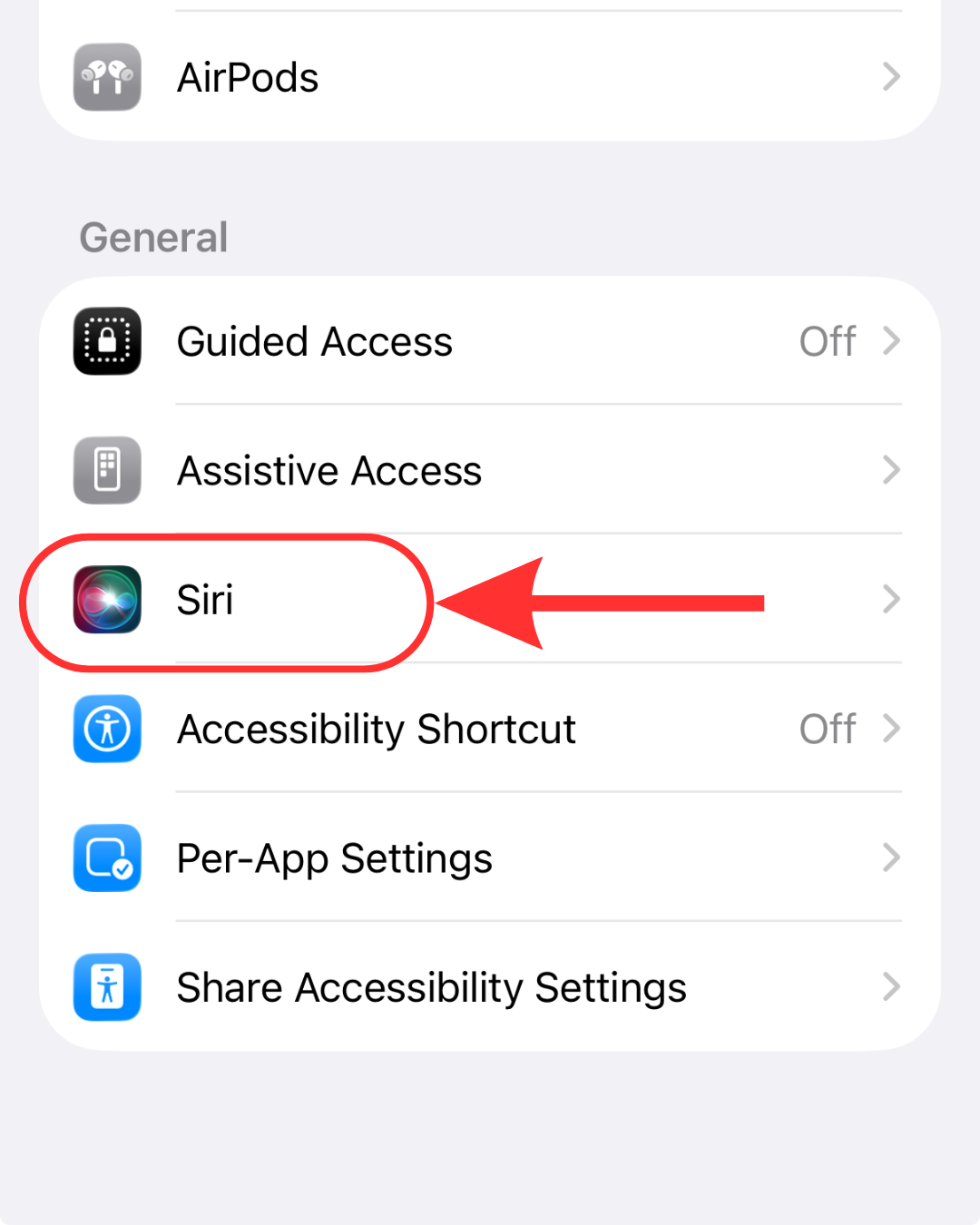
Scroll down to the General section within Accessibility and tap Siri.
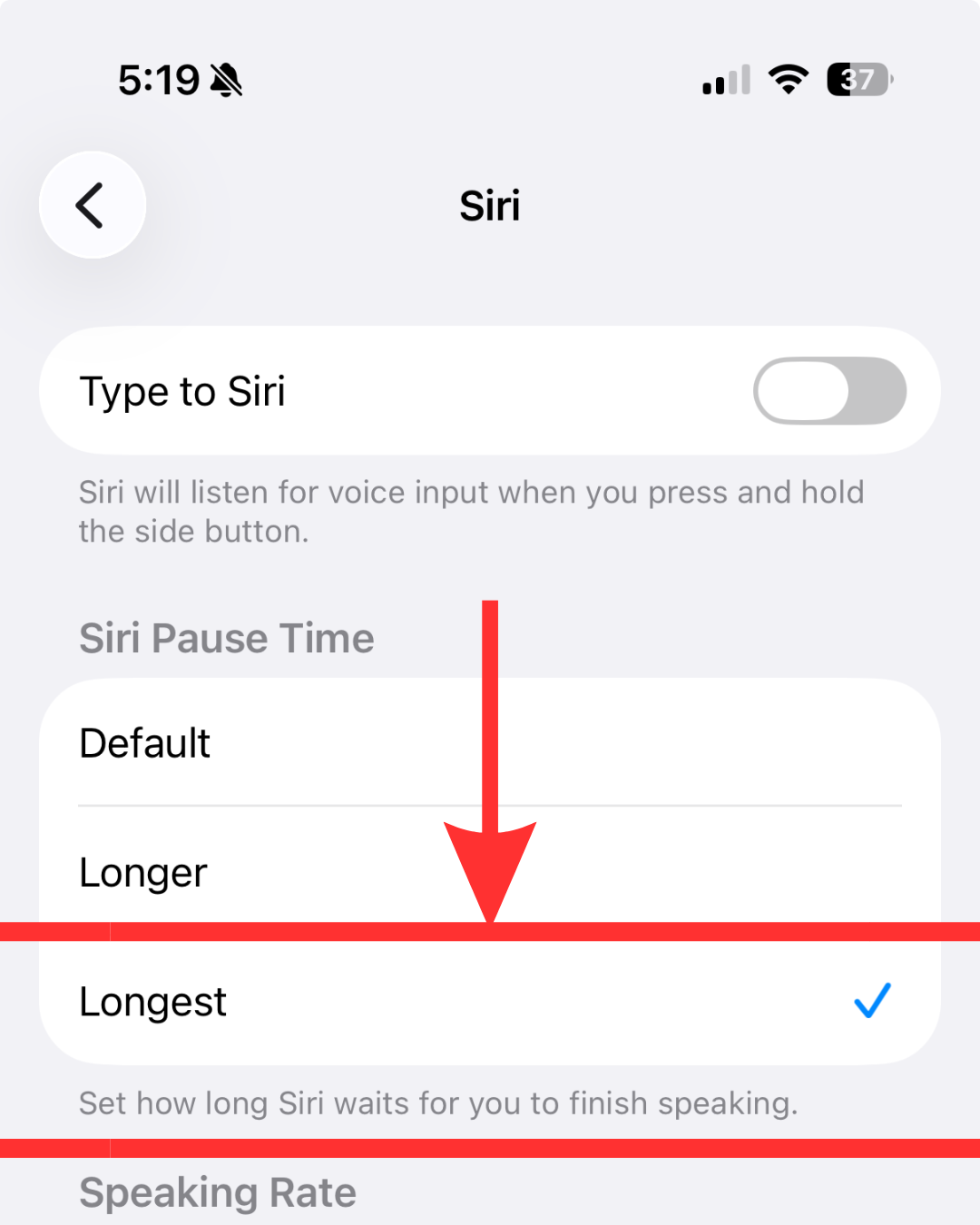
Under Siri Pause Time, tap Longer or Longest.
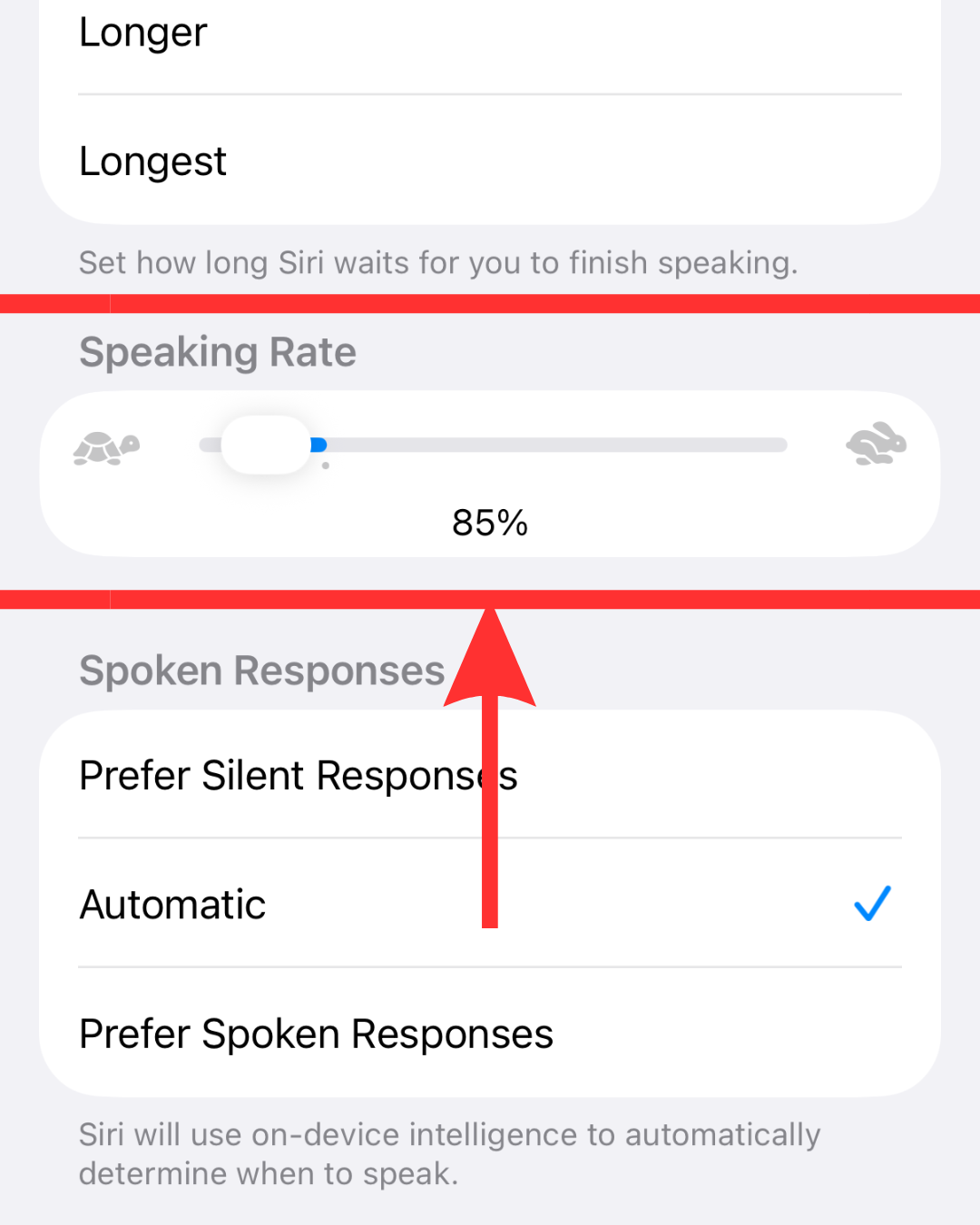
Scroll down to the Speaking Rate section.
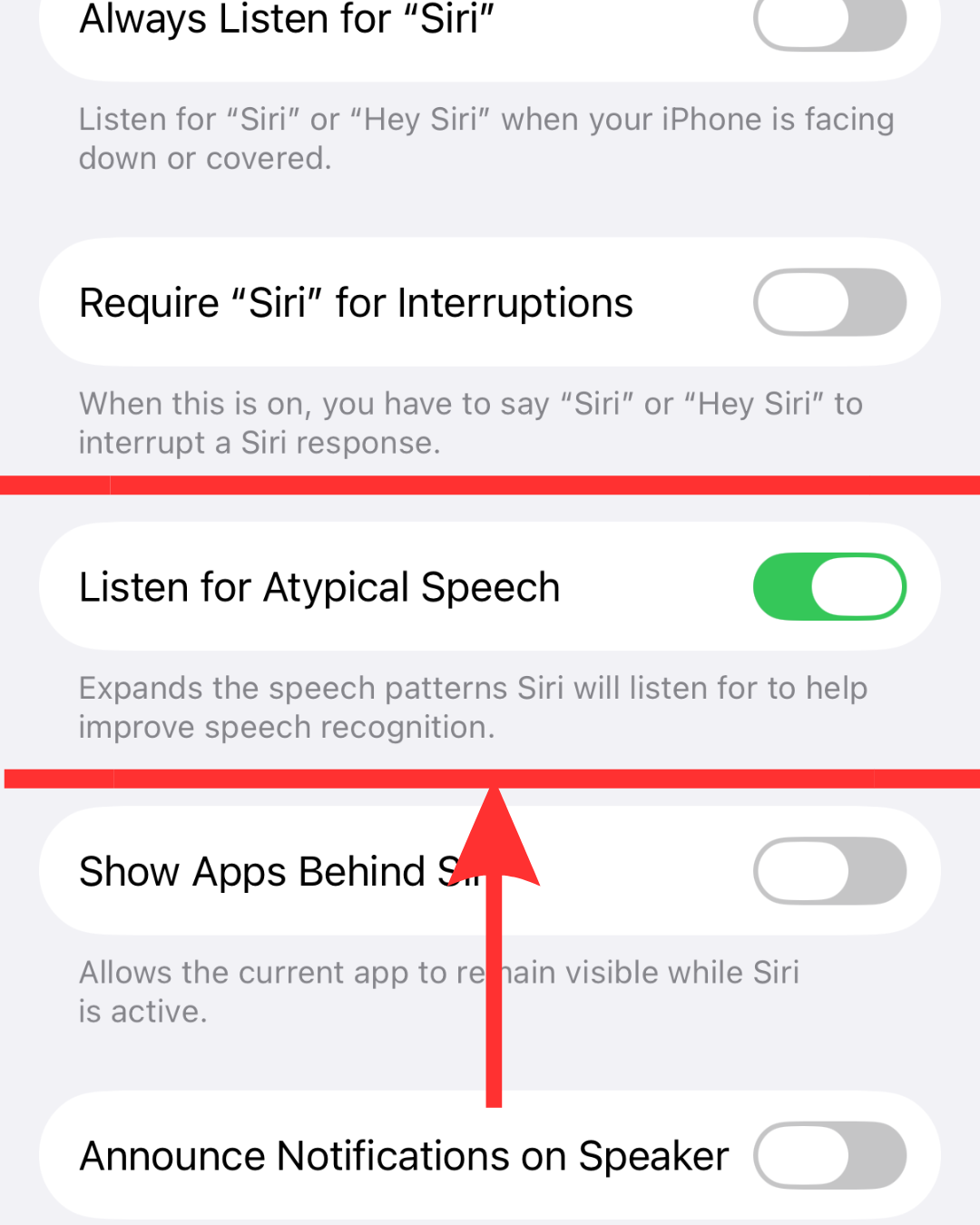
Scroll further down and toggle Listen for Atypical Speech to ON .
These simple Siri settings take less than 5 minutes to turn on. Then, Siri can:
Siri helps people text, call, ask questions and control their phone easier with low vision, dexterity challenges or tremors. By turning these extra accessibility settings on, Siri becomes an easy way to control the iPhone.